
Wrong details on a LinkedIn company page can make a strong brand look sloppy. A bad website, an old logo, or a duplicate page can confuse prospects before they ever click through to your site.
That matters for reputation management, online reputation management, and any team that depends on a clean first impression. The fix is often simple, but only if you know what you can change yourself and what needs LinkedIn support.
Start with the right admin access
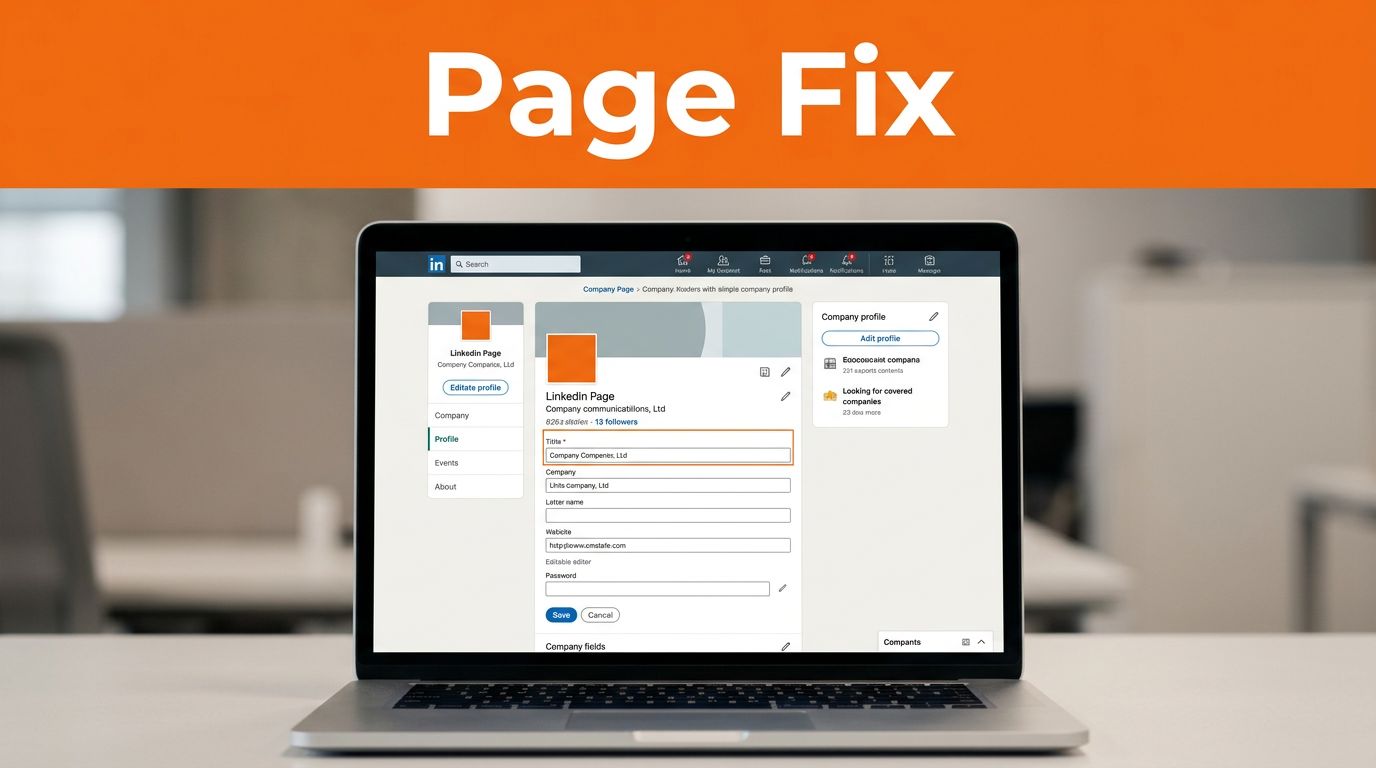
LinkedIn’s editing tools live inside the Page admin view, and the broadest control usually sits with a Super Admin. LinkedIn’s page editing help is the best place to confirm which fields belong in Page info and which ones live under Header.
- Open the correct company page.
- Switch to Super admin view.
- Click Edit page.
- Update the field in the right tab, then save.
- Refresh the page in another browser or private window.
That quick check solves more LinkedIn company page errors than most teams expect. If the field is editable, fix it there first.
If a field is editable, change it once and verify it twice. If it is locked, stop guessing and move to support.
Fix the fields LinkedIn lets you edit
Use the right field for the right problem. Some corrections belong in Page info, while others live in Header or on employee profiles.
| Problem | Usually fixed by | When to escalate |
|---|---|---|
| Wrong company name | Update Page info in admin view | LinkedIn blocks the change or it reverts |
| Wrong website or industry | Edit Page info and save | The field is locked or the update does not publish |
| Old logo or cover image | Replace the image in Header | The new asset uploads but the old one keeps showing |
| Employee association issues | Ask staff to link the right page | Employees are tied to the wrong page or an old duplicate |
| Duplicate or unclaimed page | Claim the page, then request help | You cannot access the page or both pages stay active |
The most common errors are the easiest to fix. Wrong name, website, industry, company size, and year founded usually sit in Page info. LinkedIn’s Complete your LinkedIn Page guide also shows why a fuller page tends to perform better in search and on the platform.
Logo problems belong in Header. Upload a clean square logo, use a sharp cover image, and keep the file simple. If the image still looks wrong after saving, check again on mobile and in a private browser window.
Employee association needs a different approach. Ask current staff to add the correct company in their experience section. If employees are attached to the wrong page, prospects may land on the wrong profile first, which weakens trust.
Handle duplicate pages and unclaimed pages the right way
Duplicate pages are common after rebrands, mergers, agency handoffs, or rushed page creation. Pick the page that should survive based on followers, post history, and admin access. Then decide whether the extra page needs removal, a merge request, or a support ticket.
Unclaimed pages can be more stubborn. If no one on your team has access, claim the page before you try to edit it. If LinkedIn still will not hand over control, gather proof of ownership, such as your website domain, matching business records, and screenshots of the page.
This is where many teams that handle reputation management stop trying to fix everything inside the editor. A reputation management company or a Reputation Repair Company may need screenshots, old URLs, and a change log. That is also part of online reputation management and online reputation repair when the same bad data appears across LinkedIn and other listings. Some online reputation management companies bundle this work as Reputation Repair Services. An Online Reputation Expert knows when to escalate instead of waiting on another refresh.
If your team needs help with a stubborn page issue, contact our support team and sort the next step before the error keeps circulating.
When edits do not show live
A saved edit and a live edit are not always the same thing. Sometimes LinkedIn takes time to reflect the change. Sometimes another admin reverses it. And sometimes the page shown to the public is cached.
Use this quick check when the update looks right in admin view but wrong everywhere else:
- Reopen the page in an incognito window.
- Check the page on mobile and desktop.
- Confirm another admin did not overwrite the change.
- Review the field you changed and compare it with the public page.
- If it still looks wrong, send LinkedIn support the page URL, screenshots, and the exact edit you made.
If the issue is a name change, a duplicate page, or a page you cannot claim, support is usually the right path. If the issue is a normal field that never appears publicly, the problem is often cache, permissions, or a hidden approval step.
Conclusion
Wrong LinkedIn company data is usually a fixable admin problem. The key is knowing when to update Page info, when to replace assets in Header, and when LinkedIn support has to step in.
When the same error keeps coming back, treat it like a record issue, not a one-off typo. That mindset helps with reputation management because one bad field can spread trust problems across social, search, and directory listings.
If the page problem is part of a bigger cleanup, contact our support team and sort the next step before the error keeps circulating.