
A bad Crunchbase entry can spread faster than most teams expect. Reporters, prospects, partners, and investors often use it as a quick reference before they ever visit your site.
If you’re trying to fix Crunchbase information, the good news is that many edits are open to regular users. The hard part is knowing what you can change yourself, what needs verification, and when a profile error becomes a bigger reputation issue.
Why wrong Crunchbase data matters more than it seems
Crunchbase is not just another profile page. For startups and executives, it often appears in branded searches, media research, and investor checks. A wrong title, stale funding detail, bad website link, or outdated company description can create confusion fast.
That matters because bad data rarely stays in one place. If someone copies the wrong detail into an article, database, or pitch note, the error starts to echo. For founders, marketers, and PR teams, a simple profile mistake can turn into a reputation management problem.
Crunchbase’s public help docs still show a community-driven system as of April 2026. According to Crunchbase’s profile editing instructions, any registered and socially authenticated user can edit many profiles. Its content guidelines also make clear that accuracy and objectivity are the goal.
That setup helps if your company profile is wrong. It also means edits should be factual, supportable, and free of sales language. Crunchbase is a database first, not a brand page.
Public workflows can change, so always check the latest help articles before you edit. Still, the current path is straightforward for most common fixes.
How to edit a Crunchbase profile the right way
Most company and person profiles can be updated if you meet the basic account rules. In practice, the fastest route is to gather proof first, then edit once.
- Create or log in to your Crunchbase account.
- Add social authentication, usually through LinkedIn or Google.
- Find the correct profile with Crunchbase Scout or the site search.
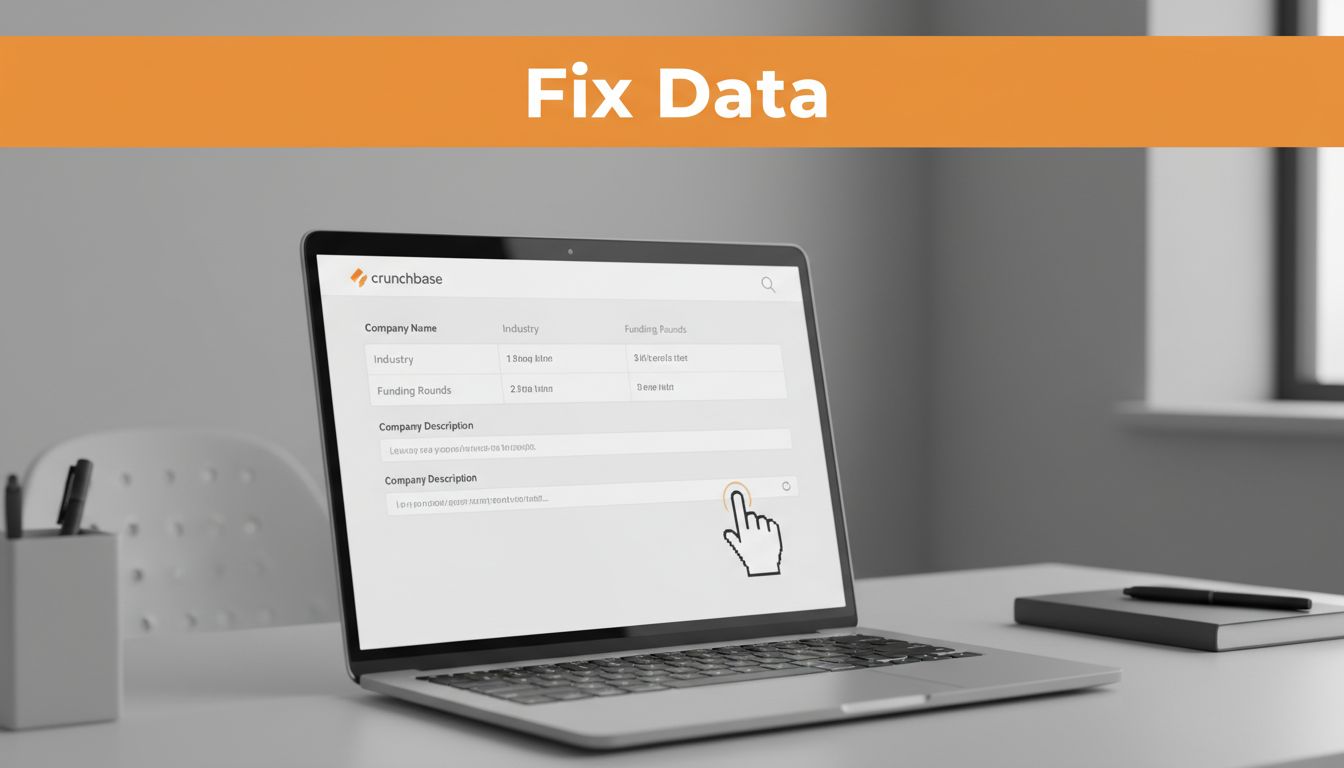
- Open the “Actions” menu on the profile page and choose “Edit.”
- Update the fields, save your changes, and review the live page.
Those five steps handle many common issues, including company descriptions, websites, locations, leadership roles, and other standard profile details. Keep your edits clean and neutral. A short factual sentence works better than brand copy.
Use evidence you can point to if the change gets reviewed. Your official website, LinkedIn company page, press release, or a current team page can help back up the update. Dates matter too. If an old funding note or job title is still showing, attach the newest public source you can find.
Claimed vs. unclaimed profiles
This is where many teams get stuck. Unclaimed profiles are usually easier. If there is no lock icon, a registered and socially authenticated user can edit most available fields.
Claimed company profiles can be different. If you see locked sections, Crunchbase may require employment verification before changes go through. The support community discussion on updating and verifying company profiles shows the kind of issue companies often run into when they try to update a profile with restricted fields.
If a field is locked, verify your connection to the company before spending time on edits that won’t stick.
People profiles follow a similar pattern. If the profile is open, you can often correct it. If it is locked, verification may come first. Also, some profile-type changes and niche fields can follow separate help workflows, so check the current Knowledge Center guidance if the normal edit path does not fit your case.
What to do when Crunchbase won’t let you change the data
Some fields are treated as part of Crunchbase’s historical dataset. According to Crunchbase’s removal rules, regular users cannot delete certain items, including founders, acquisitions, funding rounds, and jobs or employee entries.
This quick chart helps sort the next step:
| Situation | Best next move |
|---|---|
| Basic typo or outdated description | Edit the profile directly |
| Locked company field | Verify employment first |
| Historical field you cannot delete | Contact Crunchbase support with proof |
| Wrong data already copied elsewhere | Fix Crunchbase, then clean up other sources |
The main takeaway is simple. If the field is open, edit it. If the field is locked or staff-managed, bring evidence.
Good evidence is boring, and that’s a good thing. Send the profile URL, explain the issue in one or two short lines, add a source link, and include a screenshot if needed. Avoid angry language, blame, or long backstories. Clear facts move faster.
There is another layer, though. Fixing the source does not erase copies of the error in search results, investor notes, scraped databases, or AI-generated summaries. At that stage, online reputation management and online reputation repair become part of the job because you are no longer fixing one profile. You are correcting the record across the web.
Teams dealing with wider spillover often pair the Crunchbase fix with online reputation management services so branded search results reflect the corrected facts. If the bad data has already fed negative or misleading search results, this reputation repair services guide is a useful next read.
Some brands compare online reputation management companies before picking a reputation management company. Others ask an Online Reputation Expert or a Reputation Repair Company for targeted Reputation Repair Services. The right move depends on how far the error has spread.
A wrong Crunchbase profile looks small until someone repeats it. Then it starts to cost trust.
Most fixes are still manageable. Start with a registered, socially authenticated account, make factual edits, and watch for lock icons or staff-only fields.
If the error has already traveled beyond Crunchbase, correct the source first and then deal with the wider online reputation around it. That’s how you stop one bad data point from becoming a long-term story.