
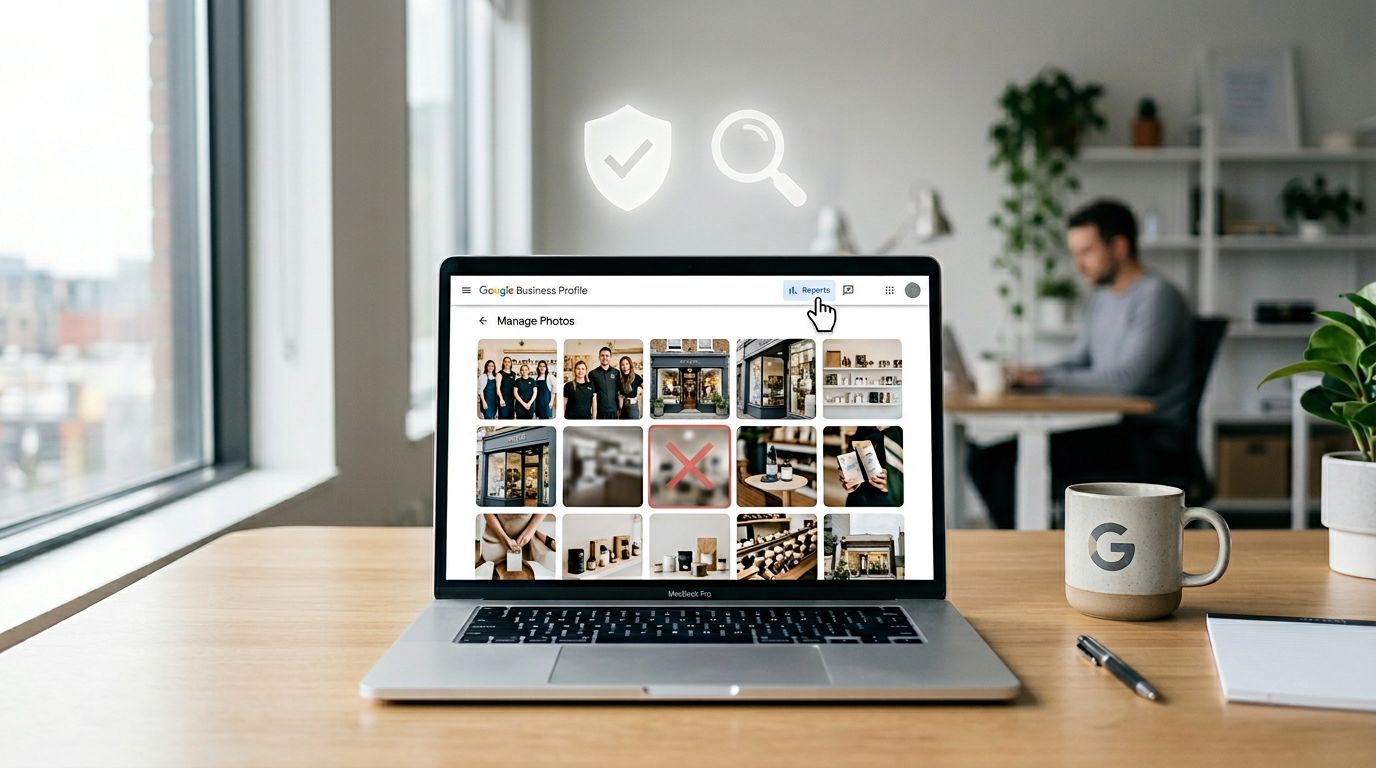

That one bad photo on your listing can do real damage. A blurry shot of your lobby, a hateful image, a customer’s private info on a receipt, or something explicit can make people bounce fast.
In February 2026, the fix usually comes down to two paths: delete what you uploaded, and report what others uploaded so Google reviews it against policy. This guide walks you through both, plus what to do when a report doesn’t work the first time.
If your goal is to remove photos google business profile surfaces show in Search and Maps, the key is to follow policy, document evidence, and stay consistent.
Know what counts as “inappropriate” (and what Google will remove)
Google doesn’t remove photos just because you dislike them. The strongest reports match a clear policy reason, such as nudity, hate, harassment, privacy exposure, or illegal content. Before you report, take 60 seconds to classify the problem.
Here are common photo issues that typically qualify:
- Nudity or sexual content: Explicit images, sexually suggestive content, or anything unsafe for minors.
- Hate or harassment: Slurs, hateful symbols, targeted harassment, or threats.
- Violence or illegal content: Weapons used to threaten, drug sales, instructions for wrongdoing, or illegal acts.
- Privacy violations: Faces of minors, license plates, ID cards, medical paperwork, or anything that exposes personal info.
- Spam or misleading photos: Competitor ads, unrelated memes, fake “proof,” or photos not connected to your business.
Google lays this out in its own rules, which helps you choose the right report reason. Keep these two pages handy: prohibited and restricted content rules and the photos and videos policy.
A report with a clear policy match gets more traction than a report that says “this is unfair.”
One important warning for doctors, lawyers, and anyone in regulated fields: don’t “explain” the situation publicly in a way that confirms a patient or client relationship. Protect privacy first. Also, don’t file false reports to punish someone. Trying to game the system can backfire and create a bigger reputation issue.
This is also where reputation management connects to day-to-day operations. A Google Business Profile photo problem is small on its own, but it can snowball if it spreads to screenshots and reviews. If you want the broader playbook, start with the fundamentals of online reputation management.
Step-by-step: Delete your photos, report customer photos, and track the case
Google surfaces change often, so button names may vary. Still, the flow is consistent across Google Search, Google Maps, and Business Profile Manager.
First, figure out who uploaded the photo. That choice determines whether you can remove it instantly or must report it.
Here’s the quick decision guide:
| Photo type | What you can do | Typical outcome |
|---|---|---|
| You or your staff uploaded it | Delete it in your profile | Usually disappears quickly |
| A customer or the public uploaded it | Report (flag) it for policy review | Removed only if it violates policy |
1) Document evidence before you click anything
Save proof first, because the photo might move positions, or others might repost it.
Do this in order:
- Screenshot the photo as it appears in Google Search or Maps (include the business name on screen).
- Open the photo and capture a second screenshot showing the image larger.
- Copy the image link if the interface offers it (or note the contributor name and upload date, if shown).
- Write down the policy reason you plan to use (privacy, hate, nudity, spam, etc.).
This simple record helps if you need to re-submit or escalate.
2) Delete photos you uploaded (owner removal)
When you uploaded the image, you usually have direct control.
- Sign in to the Google account that manages the listing.
- Open your Business Profile on Google Search (search your business name) or in Business Profile Manager.
- Click Photos.
- Find the image you uploaded (often under “By owner”).
- Open it, then select Delete (trash icon or “Remove,” labels vary).
- Refresh Search and Maps after a few minutes.
If the photo still shows, wait a bit. Caching delays happen.
3) Report photos uploaded by customers or third parties (flag for review)
For user-contributed photos, reporting is the correct route. Google reviews the report and decides whether the content violates policy.
- Open your Business Profile in Google Search or Google Maps.
- Go to Photos and open the image.
- Click the flag icon or choose Report a problem (the wording depends on the surface).
- Select the best reason (privacy, spam, offensive, illegal, etc.).
- Add details if prompted, then submit.
Google’s official instructions are here: request removal of customer photos.
In many cases, you’ll get an answer in about 1 to 2 weeks, sometimes longer for edge cases.
Don’t “pile on” with repeated reports in the same hour. Instead, submit one strong report, then follow up later with better documentation if needed.
If you’re managing multiple locations, keep a simple log (date reported, reason, outcome). It turns chaos into a process, which is a core habit in online reputation management.
When photos won’t come down: Escalation, prevention, and reputation repair options
Sometimes Google rejects a report, even when the photo feels clearly wrong. When that happens, treat it like an appeal, not a fight.
Re-submit with clearer policy framing
Go back to your documentation and tighten the reason. For example:
- “Privacy” is stronger when you point out visible personal data (license plate, name on a form, child’s face).
- “Hate or harassment” is stronger when the image contains a slur or symbol.
- “Misleading” is stronger when it’s not your business (wrong storefront, competitor, random meme).
Also, check whether the photo appears in multiple places (your listing photos, reviews, or Q&A). You may need to report each instance separately.
Reduce repeat problems with access controls and monitoring
You can’t fully stop the public from contributing photos, but you can make your profile harder to mess with and easier to manage.
A practical prevention routine looks like this:
- Limit staff access: Give editing rights only to people who need it, remove old vendors, and use separate logins.
- Turn on stronger account security: Use 2-step verification and review sign-in activity.
- Upload better “official” photos: Fresh, high-quality images can push questionable ones out of the top row.
- Check your profile weekly: Search your business name in Google Search and scan Photos, Reviews, and Updates.
If you’re already in a messy situation, pair cleanup with an actual plan. The online reputation management plan for 2026 is a solid framework for staying consistent once the fire drill ends.
When this becomes a bigger reputation issue
An inappropriate photo can trigger negative reviews, social posts, and search results that linger. That’s where online reputation repair matters, because you’re no longer just removing content, you’re rebuilding trust.
At that point, business owners often look at:
- A reputation management company to handle monitoring, reporting, and response workflows
- online reputation management companies that combine PR, search, and content strategy
- A dedicated Reputation Repair Company or Online Reputation Expert for high-stakes cases (doctors, lawyers, CEOs, public figures)
- Ongoing Reputation Repair Services to keep the profile clean and prevent repeats
For a structured approach, use this step-by-step reputation repair guide. It helps you connect Google Business Profile fixes to the bigger picture of reputation management.
Conclusion
Inappropriate photos don’t have to live on your listing. Delete what you control, report the rest using the best policy match, and keep evidence so you can follow up. After that, tighten access and monitor weekly so the same issue doesn’t return. When the problem spreads beyond a single photo, online reputation management and professional support can turn a stressful moment into a clean, repeatable process.